PJ
Artefact Sync
- Aug – Nov 2026
- Product Therapy
- Build
Overview
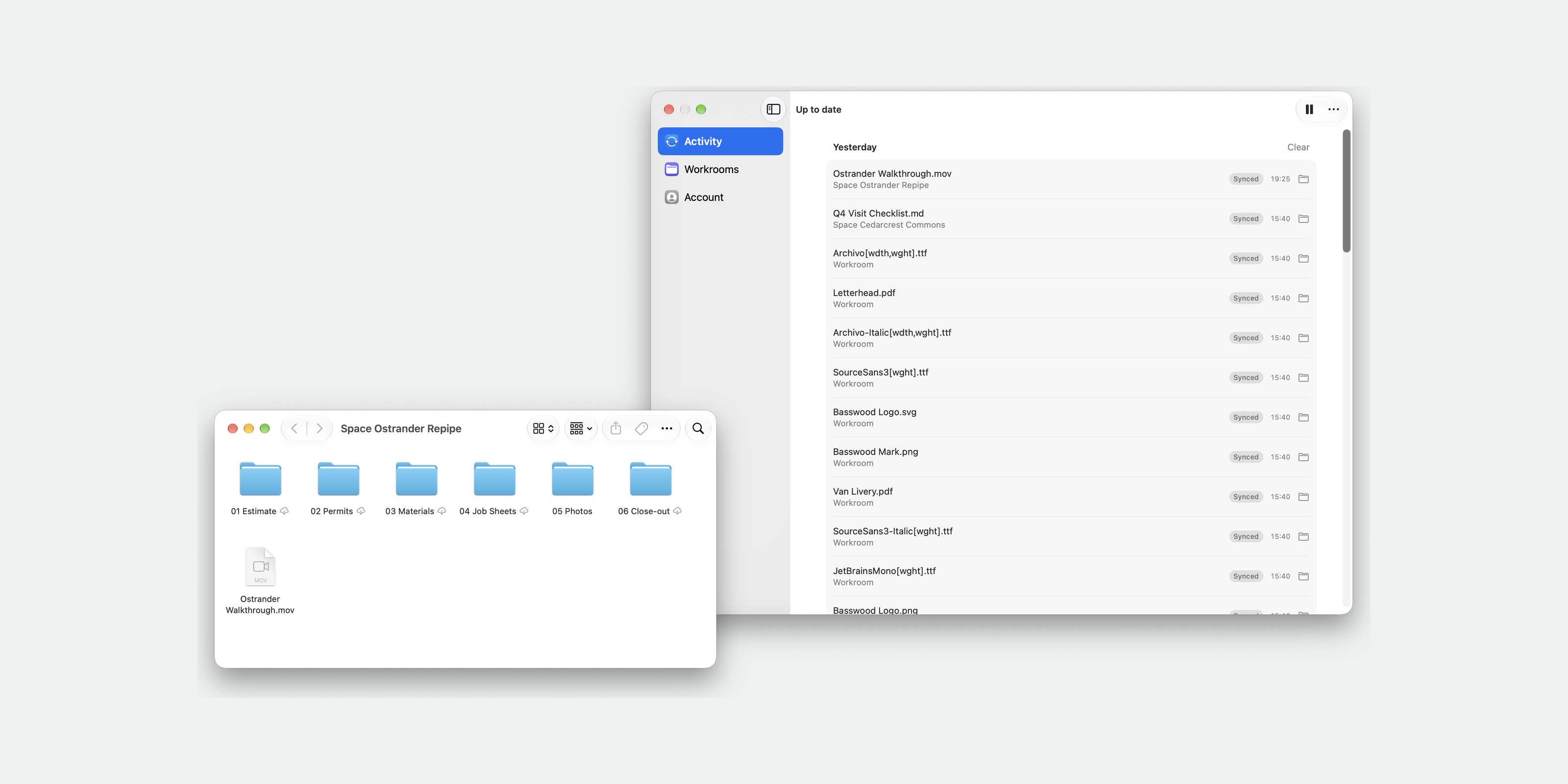
Artefact is Workroom’s shared store for files and folders. Artefact Sync puts a Workroom’s spaces on your own computer. On a Mac they appear in Finder beside iCloud Drive and Google Drive, and a file downloads only when you open it. On Linux, a small widget in the Omarchy bar shows what is syncing and what went wrong, and lets you pause, retry or choose which spaces the machine keeps.
Neither client talks to the server itself. Both sit on one sync engine in the workroom command-line tool and read the same status contract. We built the engine, the contract, the widget and the Mac app in under three weeks. Then we rebuilt the Mac app on Finder’s own sync, after its first version drew controls that macOS already provides. Artefact Sync runs in-house.
- Timeline
- Aug – Nov 2026
- Scope
- Mac app, Omarchy bar widget and the sync engine under both
- Tools
- Swift, File Provider, Rust, SQLite, QML
The sync engine
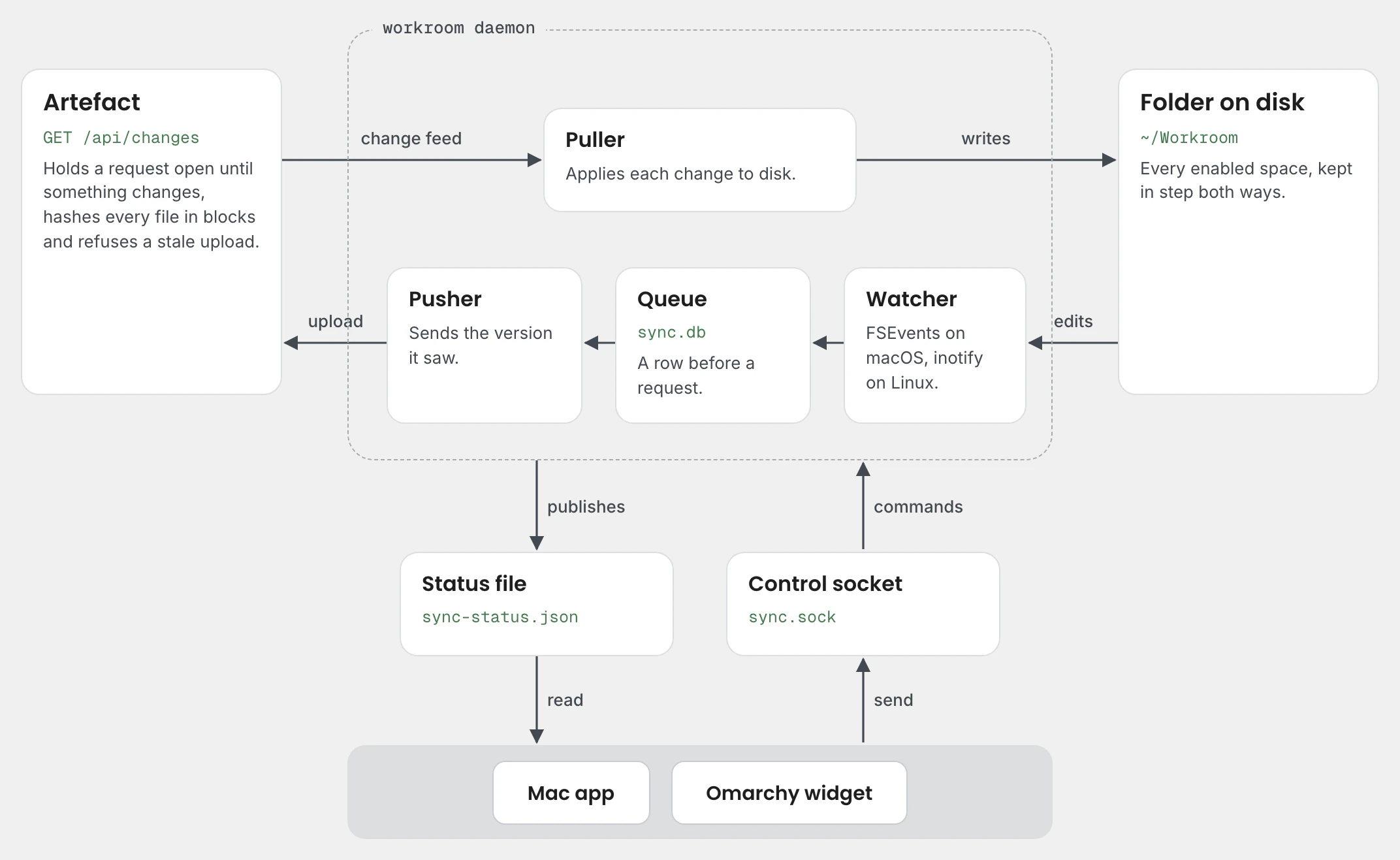
Sync needed a file store that a client could follow, so the server came first. Every change to a file, folder or space now publishes an event inside the transaction that makes it. A long-polled change feed holds a request open until something changes, then sends each item as it stands now. A client that fell behind catches up on the current state instead of replaying history. The server hashes every file in blocks, using the definition Dropbox published rather than one of our own, so a client can tell whether its copy is current without downloading it. An upload names the version it was based on, and a stale one is refused with the current version attached.
The engine lives in the workroom command-line tool, written in Rust. It watches the local folder, pulls the feed onto disk and pushes local edits from a queue kept in SQLite. A change is stored as a row before it is sent as a request, so it survives a restart. A conflict never loses an edit: the local copy is renamed as a conflicted copy and uploaded beside the server’s version, and a folder made on both sides is merged. The engine and its daemon, with a login service for macOS and Linux, took about two days. Later work added several Workrooms on one machine, pausing one space at a time and signing in through the browser.
One status contract
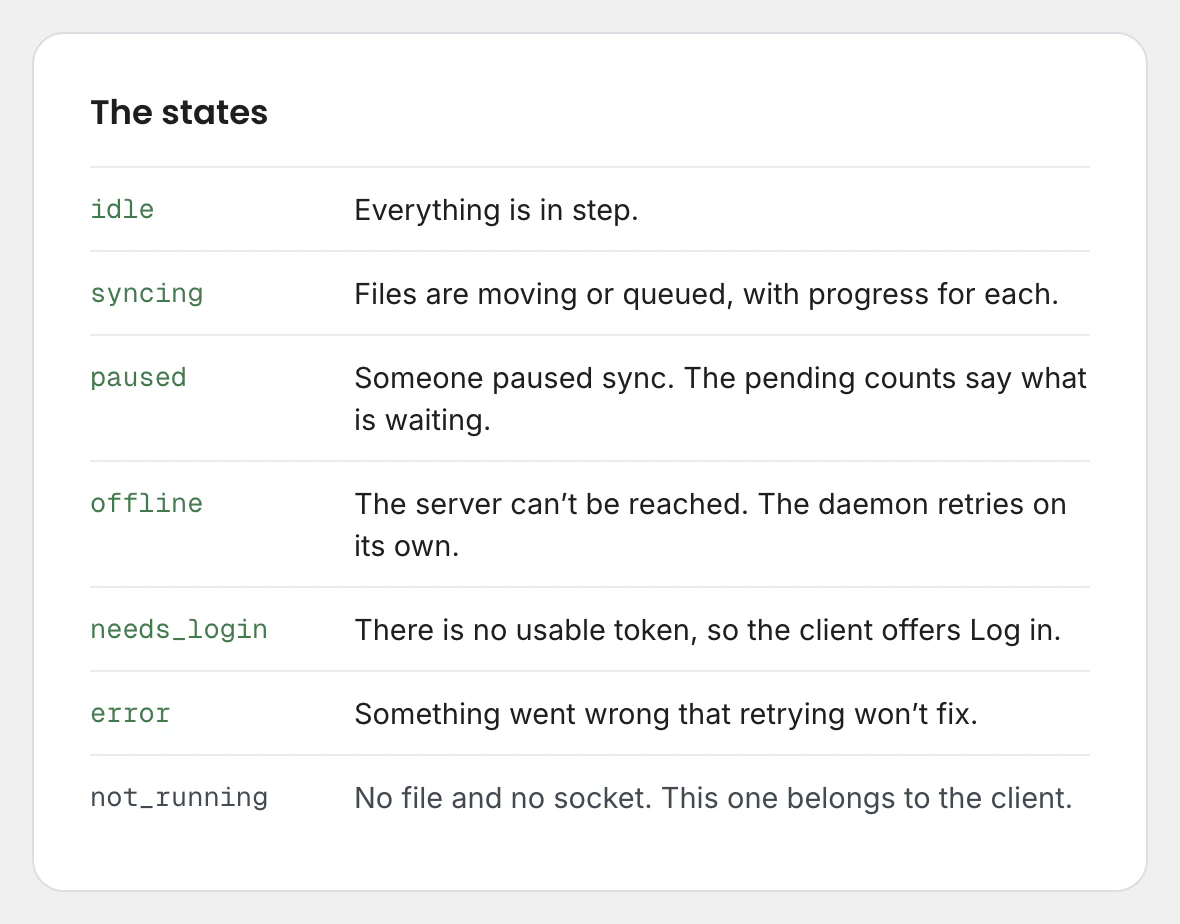
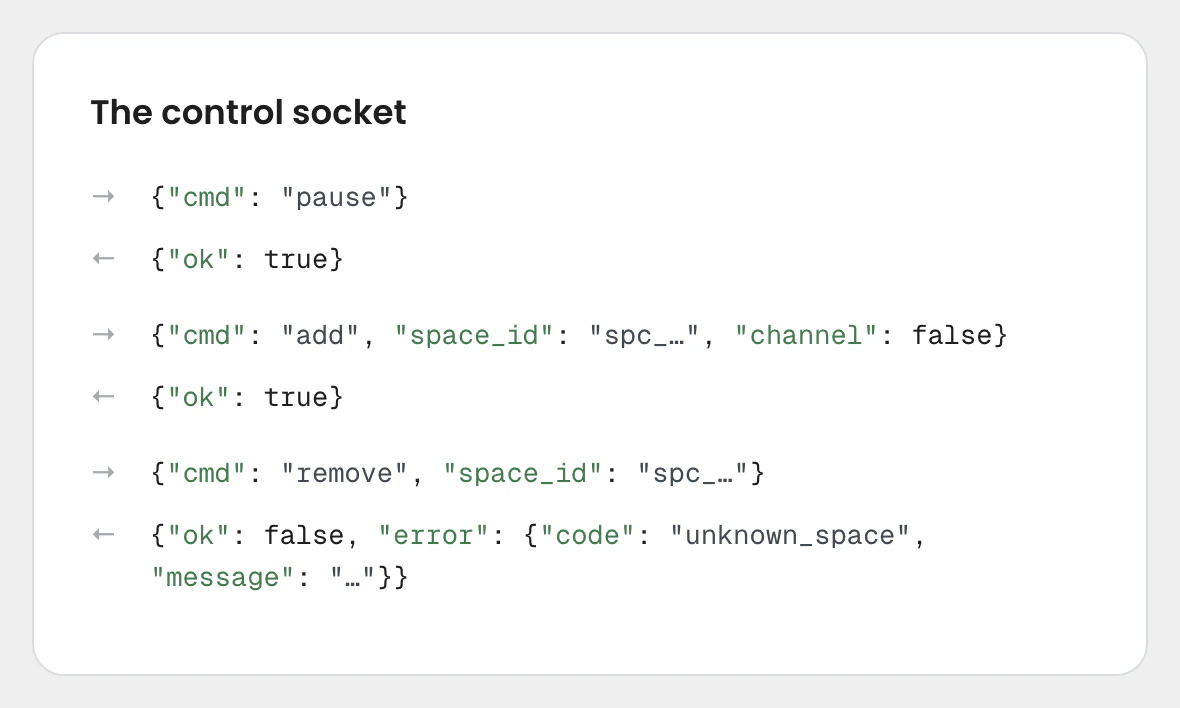
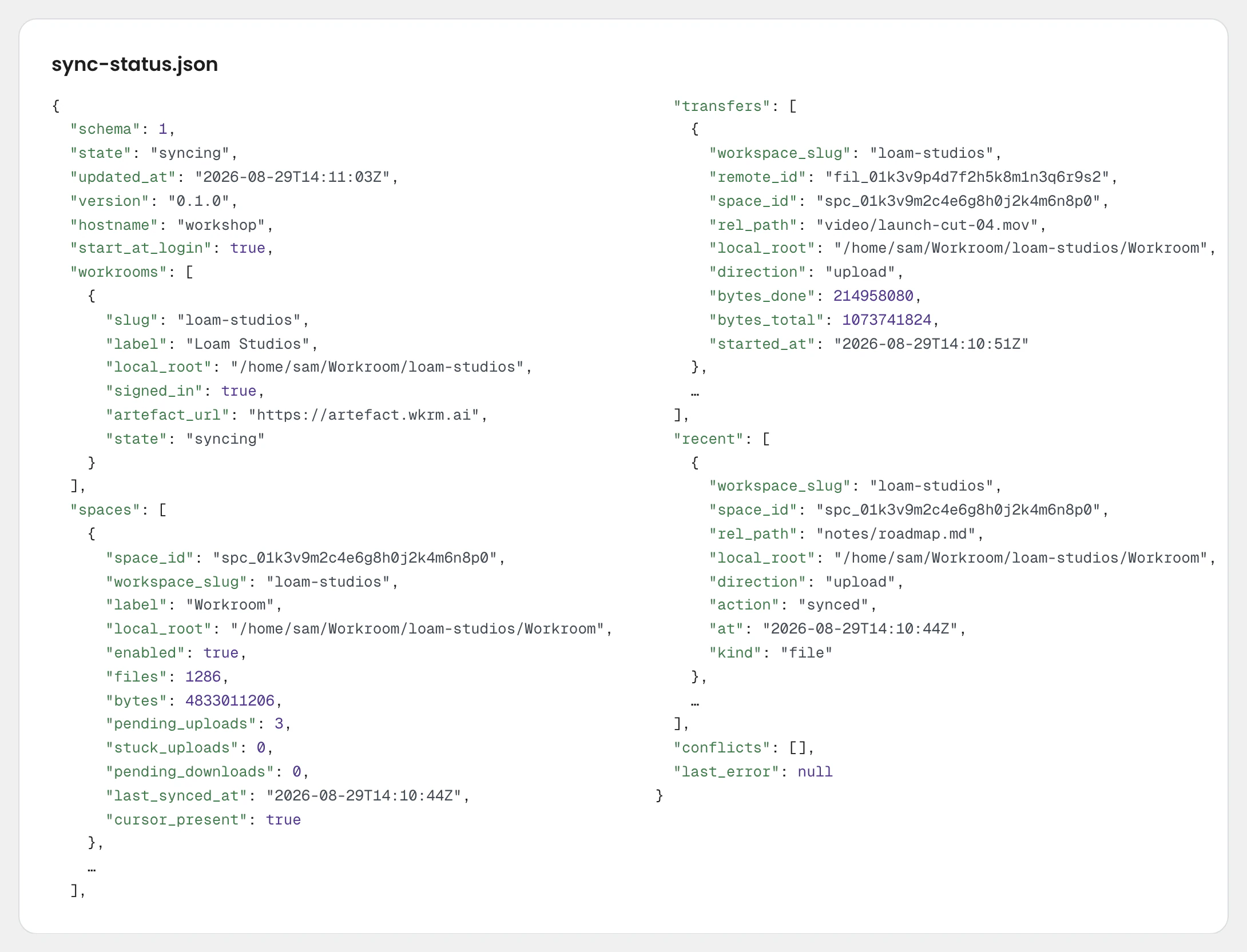
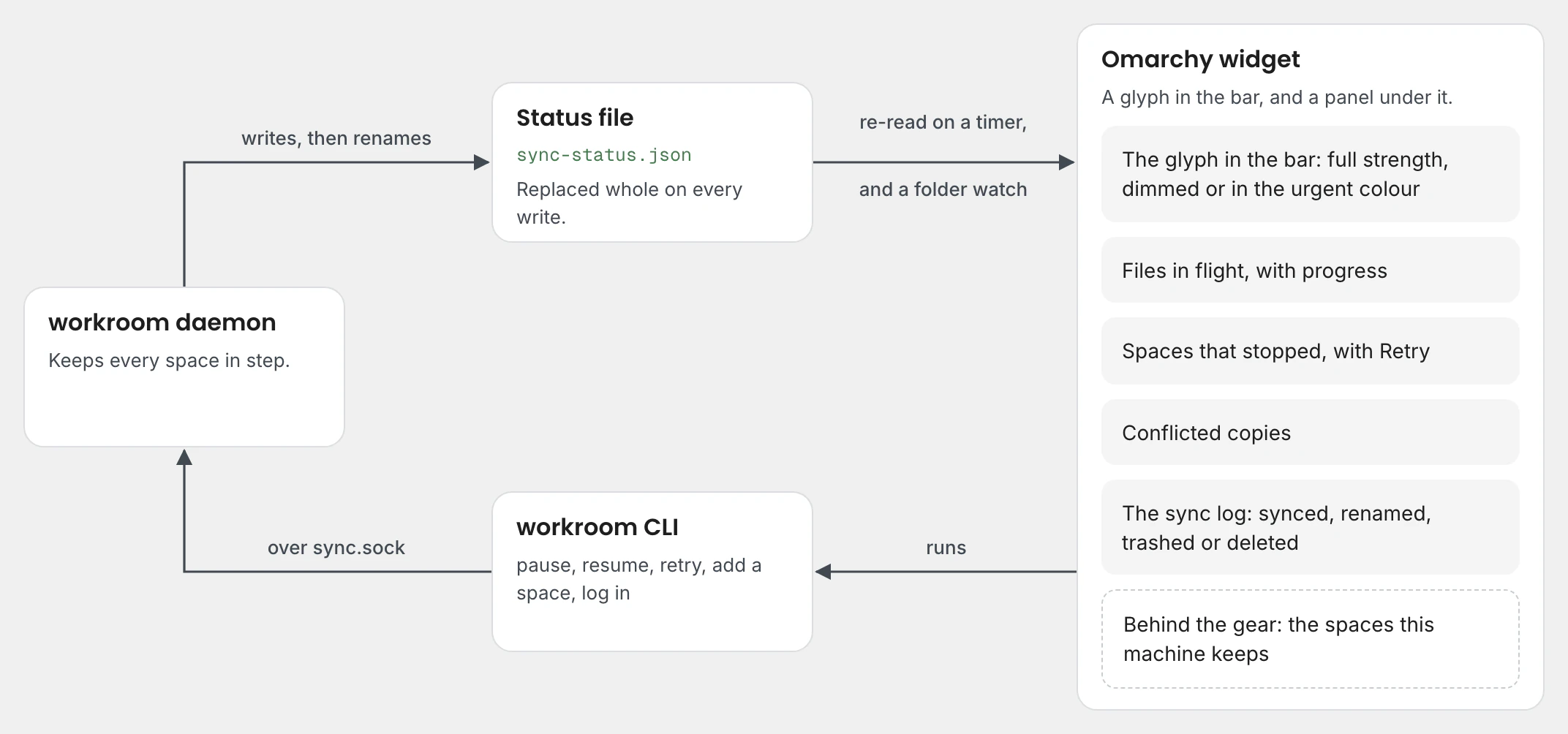
The Omarchy widget and the Mac app were started before the daemon existed, so the contract between them was written down first. The daemon publishes a status document and takes commands on a socket beside it. The document says what state sync is in, what each space holds and what is waiting, which files are moving and how far along they are, what happened lately and what conflicted. Each state came with a sample document that the clients were built against.
The file is replaced in one step rather than edited, so a reader never sees half of it. A watch on the file goes quiet after the first replacement, so the contract tells clients to watch its folder instead. A reader ignores the fields it does not know, which lets the engine add to the document without breaking either client.
The Omarchy widget
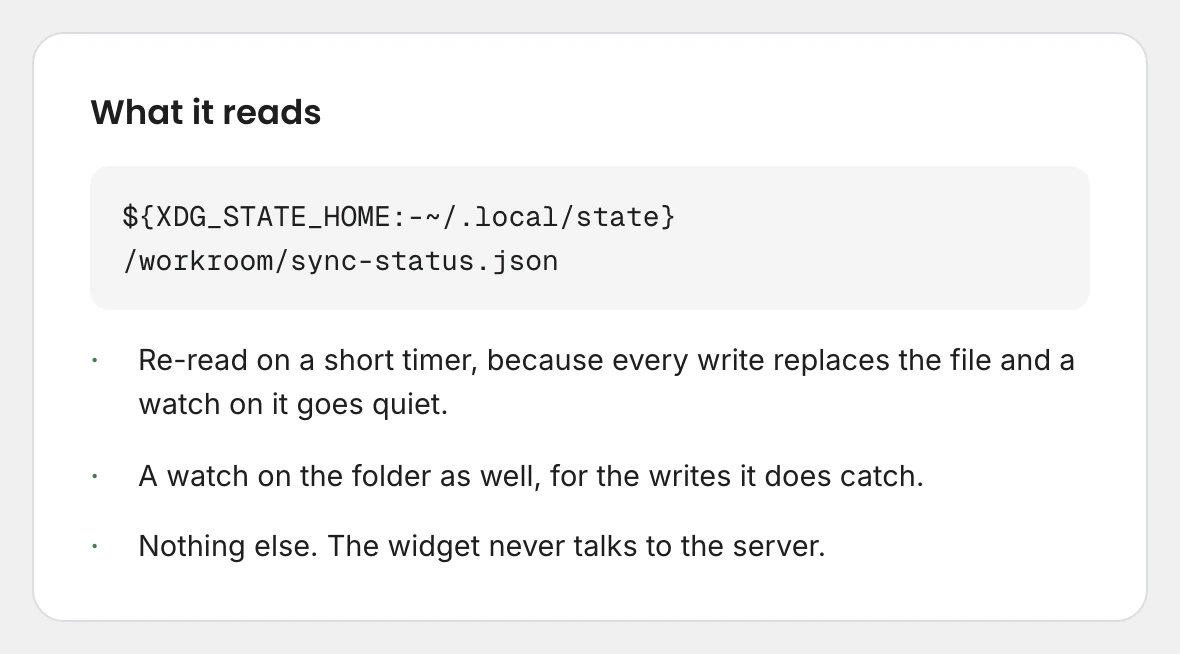
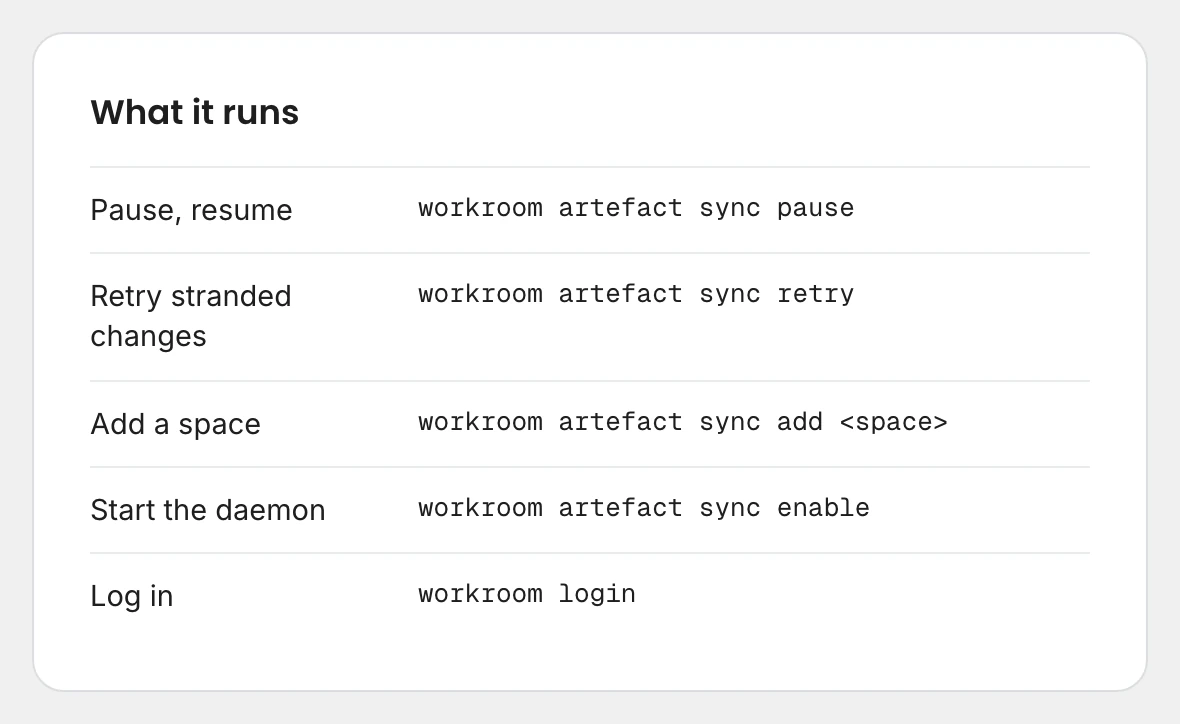
On Linux, Artefact Sync is a widget in the Omarchy bar, written in QML. It reads the status file and does everything else through the command-line tool, so it never talks to the server. Its glyph carries the state at a glance: full strength while sync works, dimmed when it is quiet or paused, and the urgent colour when someone has to act. Because the status file is replaced on every write, the widget re-reads it on a short timer and keeps a watch for the writes it does catch.
The panel shows only what has something to say: files in flight, spaces that stopped, conflicted copies and a log of what happened to each file, including one that was renamed or removed. Choosing what the machine keeps sits behind a gear, with the spaces grouped the way Artefact’s own navigation groups them. A machine that holds more than one Workroom picks between them from a select.
From a menu bar to Finder
The first Mac app lived in the menu bar, with no Dock icon. It bundled the workroom binary, installed the daemon as a login agent on every launch and drew a menu from the status document, with commands to pause, resume and stop. The daemon mirrored each space into a folder in the home directory.
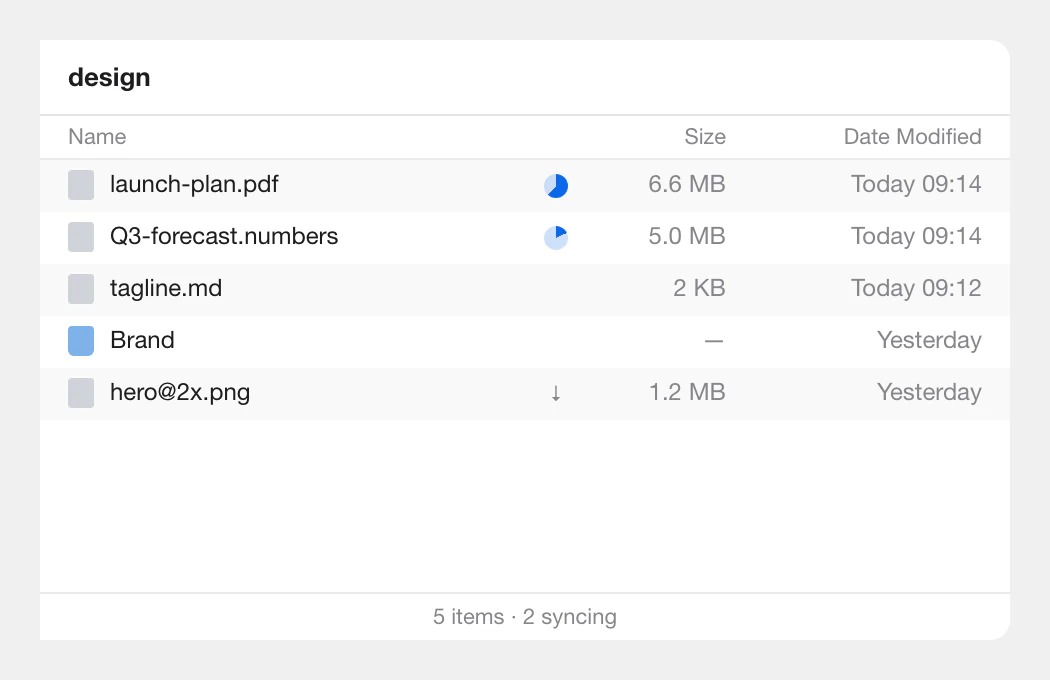
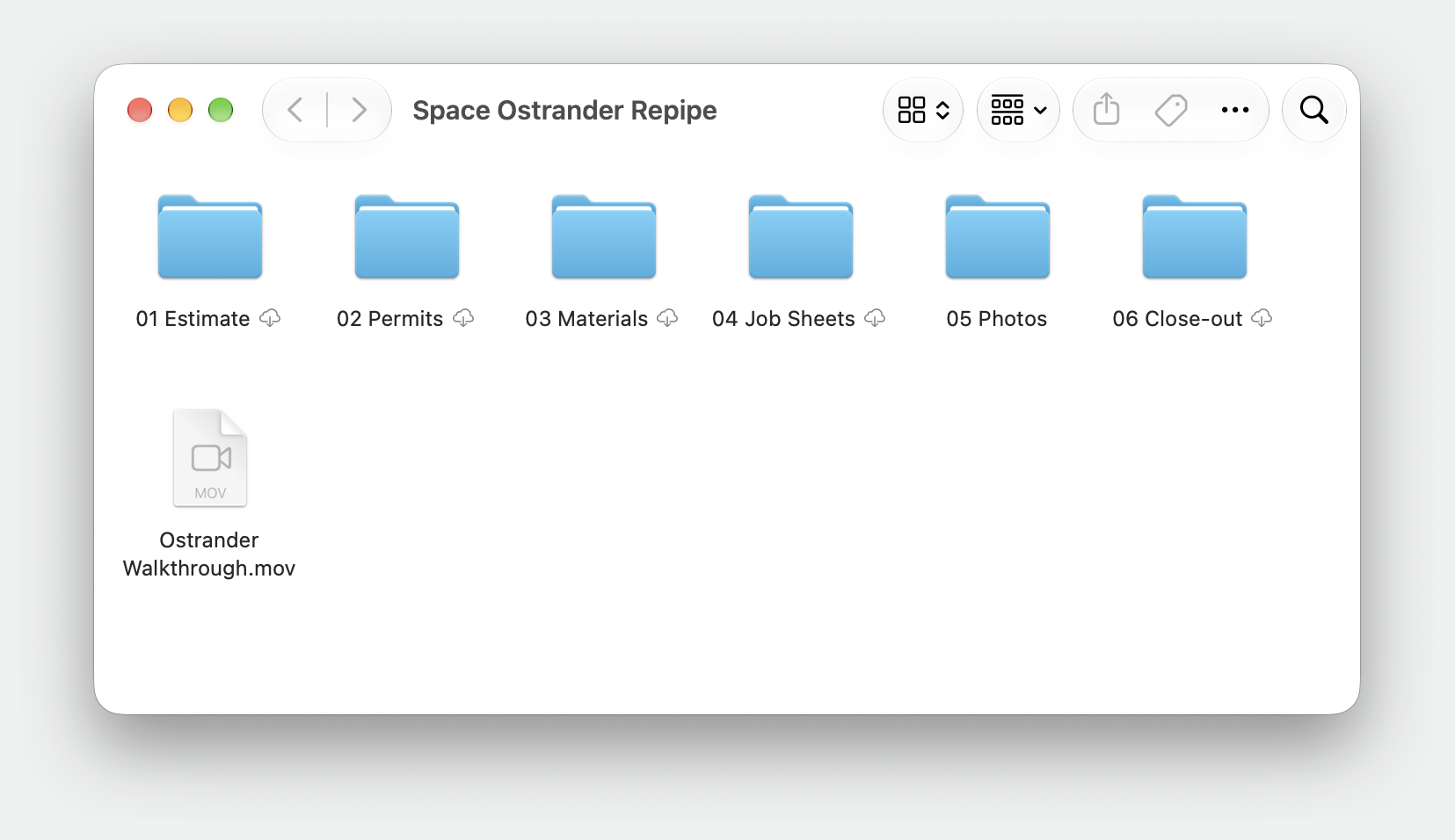
A File Provider extension went in alongside it. It served a space in Finder and wrote Finder’s edits back to Artefact, and each Workroom became its own location, the way Google Drive gives each account a directory of its own. With the two side by side, we rebuilt the app on Finder’s own sync, because the first version drew controls that macOS already provides. Progress on a file moved to Finder’s badges, signing in moved to the browser and settings moved to a window. A file now has one copy on the Mac, in its File Provider location, as iCloud Drive, Dropbox and Google Drive keep theirs. The system launches the extension when it is needed, so the daemon and its login agent came out. The turn took two days. The command-line tool keeps its mirrored folder for Linux and for anyone who wants a plain folder.
The status item and the window
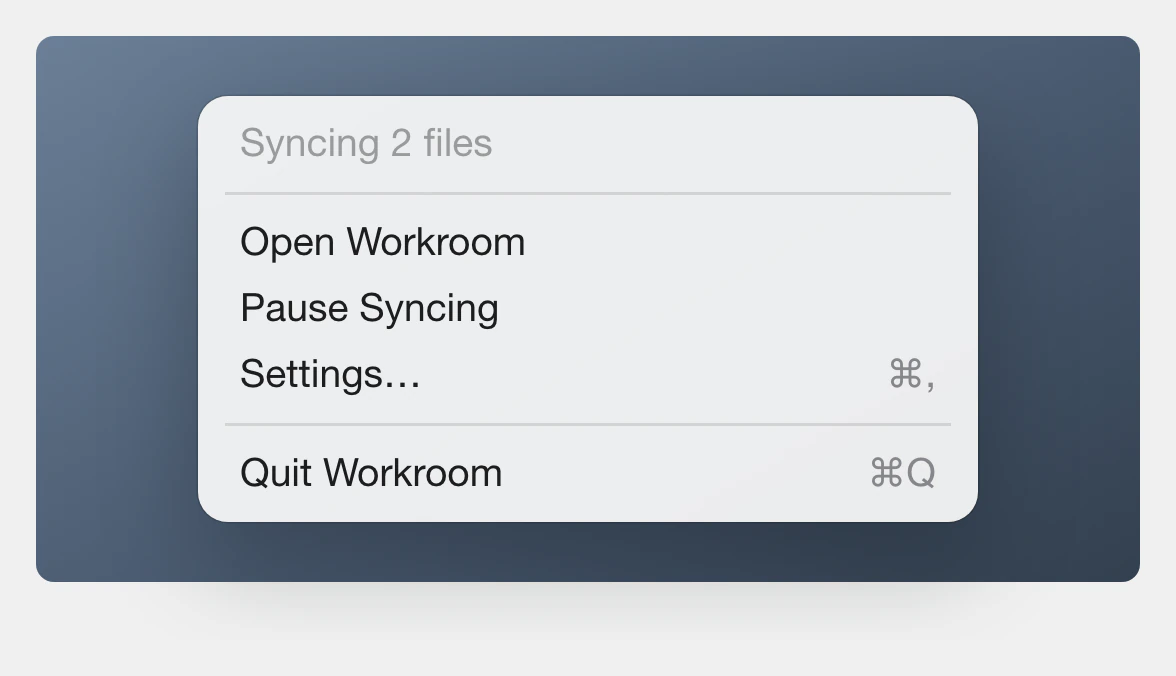
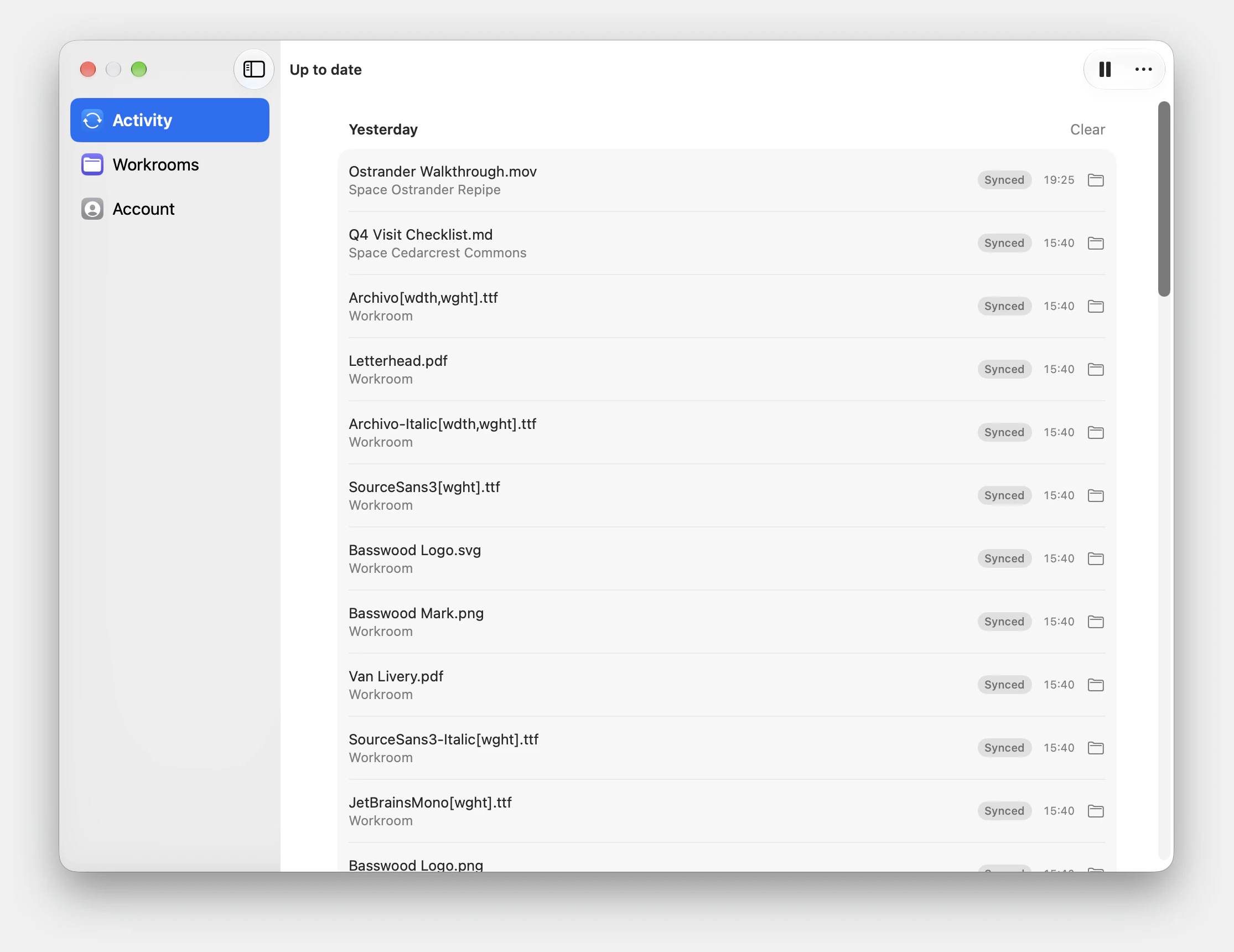
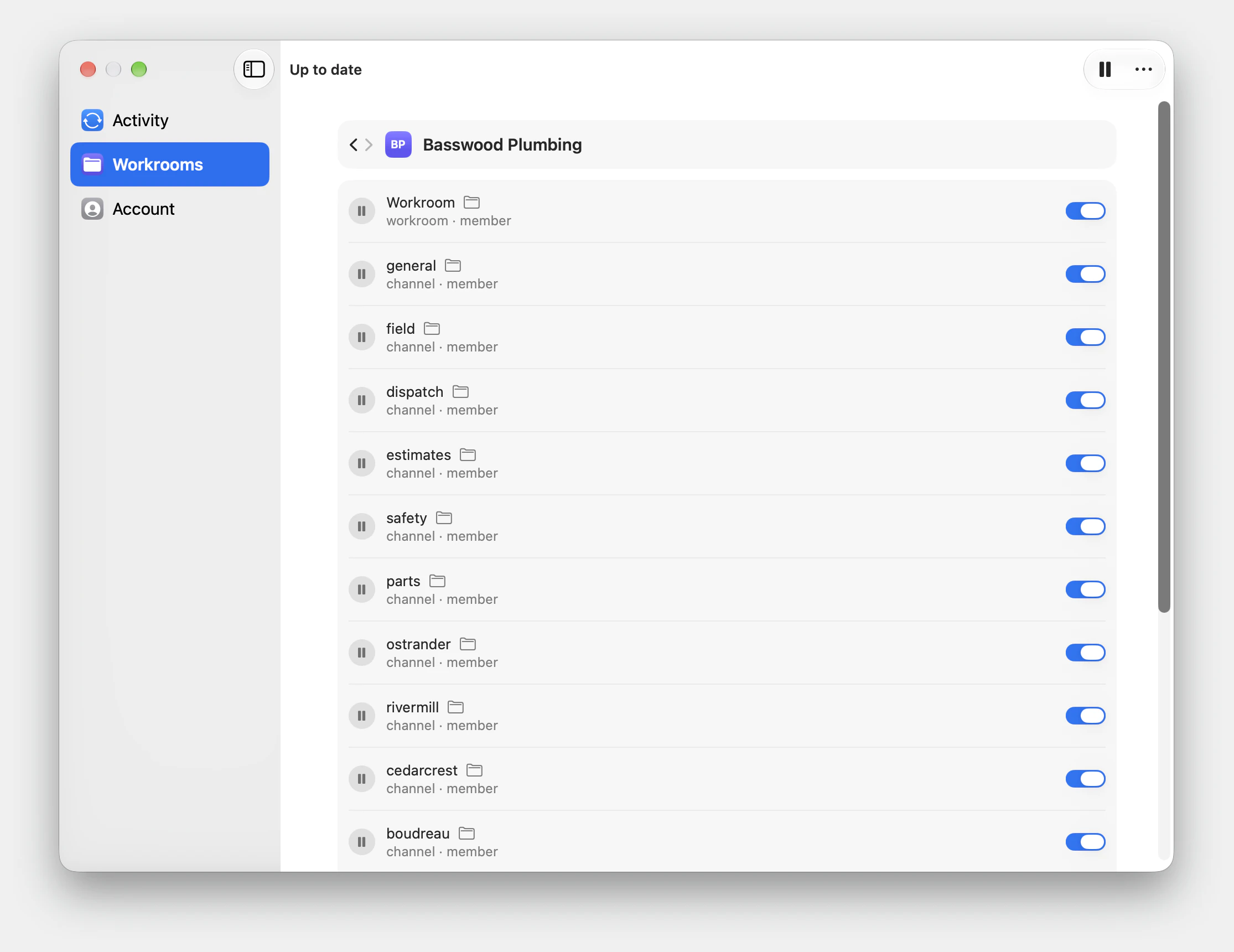
The menu went next. The status item now opens and closes one window, which empties the menu almost by itself. Opening the app is the click, pausing is a control in the window’s toolbar, choosing what the Mac keeps is a pane, and quitting sits under the toolbar’s ellipsis. Transfers never depend on the window, since the system runs the extension whether the app is open or not.
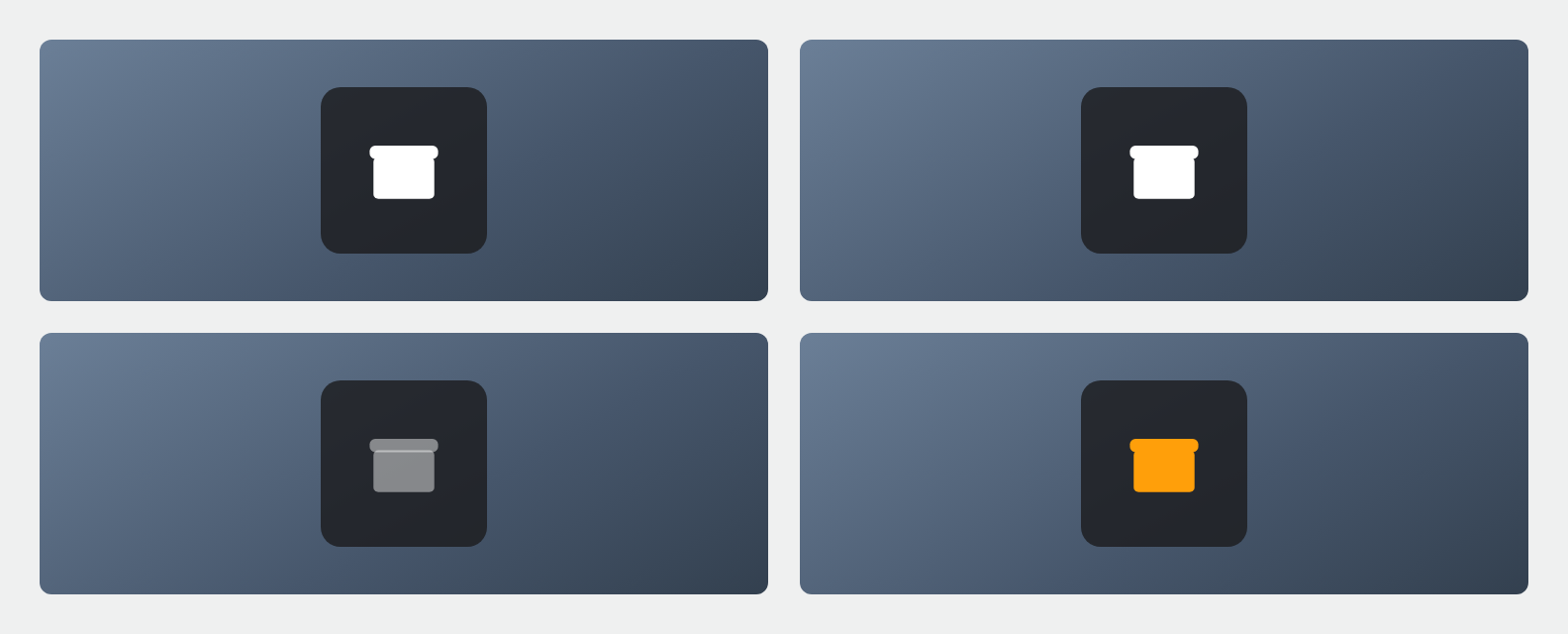
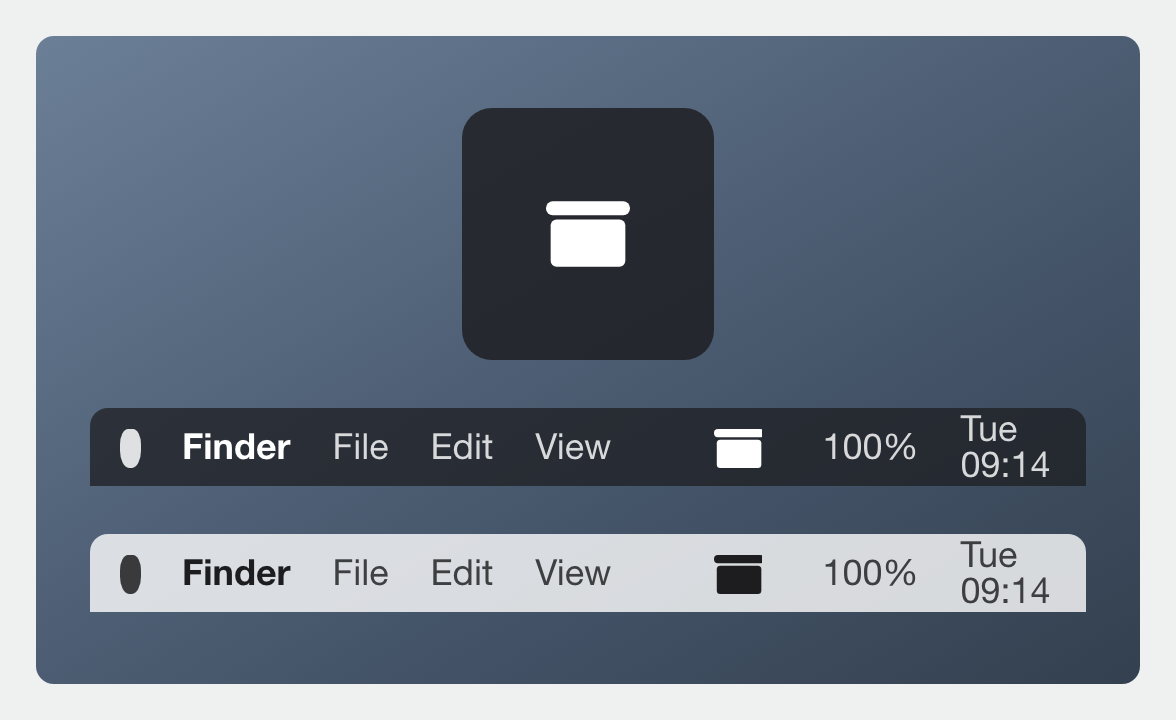
The app is named Workroom Artefact and carries Artefact’s own icon. Its status item is a mark cut from that icon: whole at rest, breathing while files move, dimmed when sync is held and in the urgent colour when it needs you. The first cut read too small beside its neighbours in the menu bar, so the mark was redrawn at the bar’s own size. Signing in moved to the browser in place of a pasted token.
Nothing removed without asking
The File Provider version then had to keep up and tell the truth. A change made in the web app has to reach Finder while the extension runs, so the app follows each Workroom’s change feed with a single reader. macOS runs one extension process per location, so each one writes its own part of the status document and the parts are composed into one that any client can still read. Items are known by their Artefact id rather than their path, so a rename is one changed item.
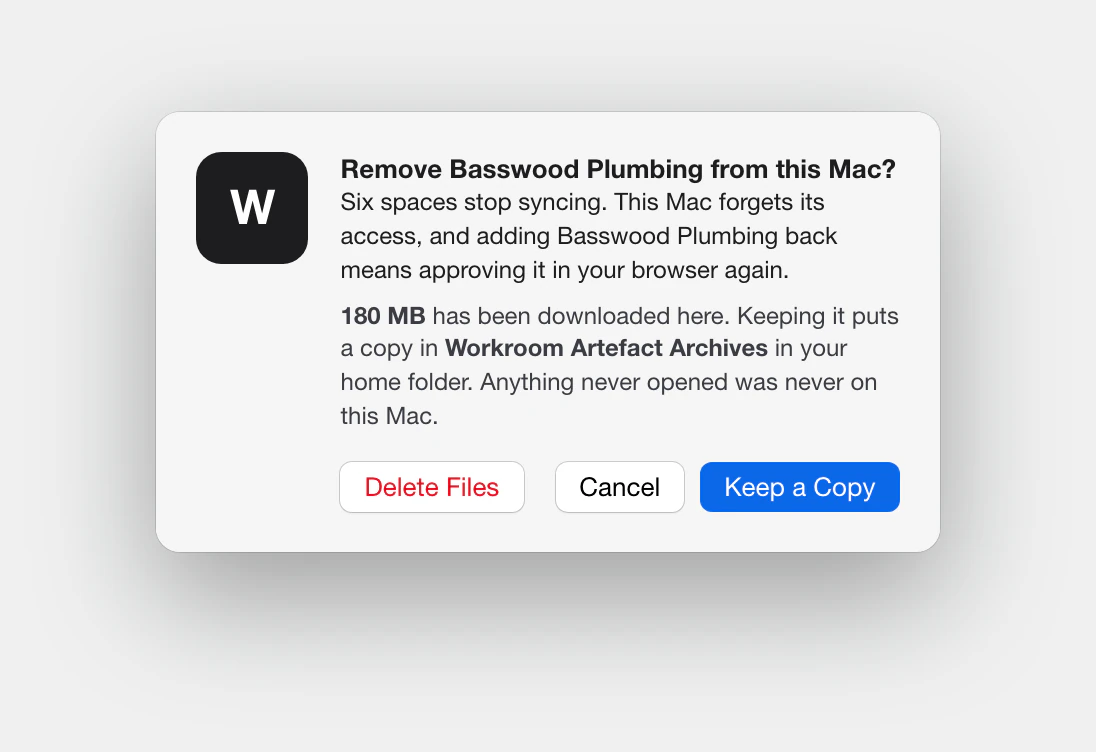
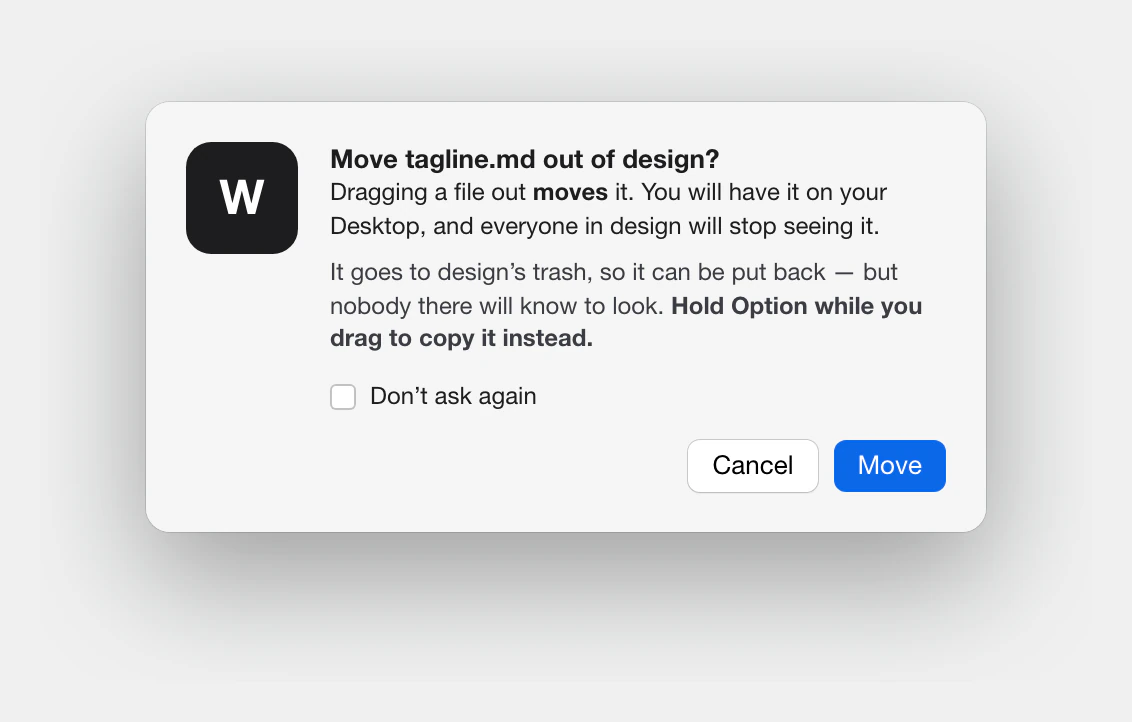
Every space syncs by default, and the switch on a space takes it off. Nothing is removed without saying what becomes of the files: Keep a Copy, Delete Files or Cancel. A kept copy holds only what was downloaded. Dragging a file out of a Workroom warns first, because on the same disk Finder moves the file rather than copying it, and everyone else in the space would stop seeing it. On the Mac, a Finder save adds a version, so an edit made elsewhere stays in Artefact’s history and only a stale delete is refused. A scenario suite drives the installed app against a real server, group by group.
Outcomes
A Workroom’s spaces in Finder, with each file downloaded only when it is opened
One sync engine in the command-line tool, under every client
A status contract that every client reads the same way
An Omarchy bar widget that shows what is syncing and what went wrong
Edits that survive a restart, and conflicts that never lose one
A Mac app and a Linux widget built and running in-house